
Devtron Intelligence is an AI assistant that helps you troubleshoot issues faster by analyzing your Kubernetes workloads. It offers smart and easy-to-understand suggestions using large language models (LLM) of your choice.
Check out the Results section to see where Devtron gives you AI-powered explanation for troubleshooting.
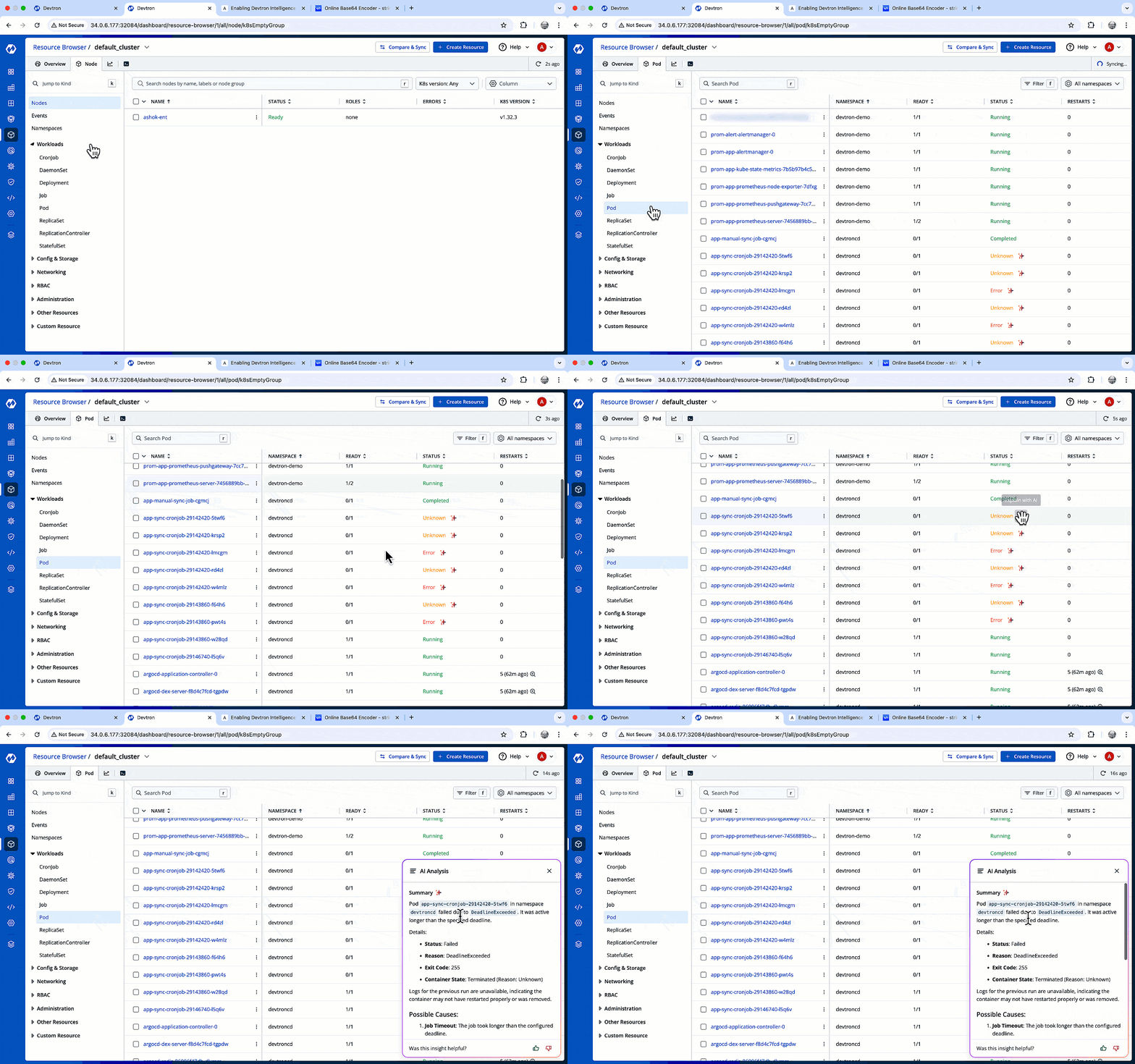
{% embed url="https://www.youtube.com/watch?v=WW7skAa0XAs" %}
{% hint style="warning" %}
User must have permissions to:
- Deploy Helm Apps (with environment access)
- Edit the ConfigMaps of 'default-cluster'
- Restart the pods {% endhint %}
Devtron Intelligence supports all major large language models (LLM) e.g., OpenAI, Gemini, AWS Bedrock, Anthropic and many more.
You can generate an API key for an LLM of your choice. Here, we will generate an API key from OpenAI.
There are 2 methods to create a secret in Devtron, follow the one you prefer:
- Go to strings.devtron.ai and encode your API key in base64. This base64 encoded key will be used while creating a secret in the next step.
- Go to Devtron's Resource Browser → (Select Cluster) → Create Resource
- Paste the following YAML and replace the key with your base64-encoded OpenAI key. Also, enter the namespace where the AI Agent chart will be installed:
apiVersion: v1
kind: Secret
metadata:
  name: ai-secret
  namespace: <your-env-namespace>  # Namespace where the AI Agent chart will be installed
type: Opaque
data:
  ## OpenAiKey: <base64-encoded-openai-key>           # For OpenAI
  ## GoogleKey: <base64-encoded-google-key>           # For Gemini
  ## azureOpenAiKey: <base64-encoded-azure-key>       # For Azure OpenAI
  ## awsAccessKeyId: <base64-encoded-aws-access-key>  # For AWS Bedrock
  ## awsSecretAccessKey: <base64-encoded-aws-secret>  # For AWS Bedrock
## AnthropicKey: <base64-encoded-anthropic-key> # For Anthropic{% hint style="success" %} Unlike Method A, this method doesn't require you to encode your LLM Key to Base64 format. {% endhint %}
- Go to Devtron's Resource Browser and click the terminal icon next to the cluster where you wish to create the secret.
- Use the following kubectl command to create a secret.
- Replace
my-namespacewith the namespace where the AI Agent chart will be installed. - Use the correct LLM key-name and your key-value after
--from-literal
- Replace
kubectl create secret generic ai-secret \
  --namespace=my-namespace \
  --from-literal=OpenAiKey='openai-key-here' \
#  --from-literal=GoogleKey='google-key-here' \
#  --from-literal=azureOpenAiKey='azure-key-here' \
#  --from-literal=AnthropicKey='anthropic-key-here'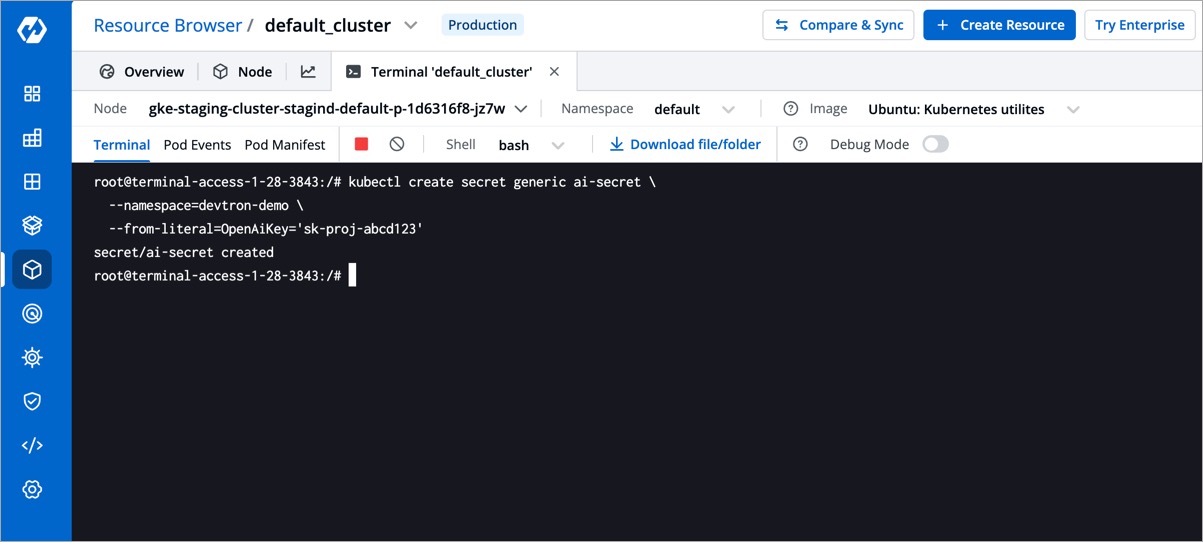
{% hint style="warning" %}
Deploy the chart in the cluster whose workloads you wish to troubleshoot. You may install the chart in multiple clusters (1 agent for 1 cluster). {% endhint %}
- Go to Devtron's Chart Store.
- Search the
ai-agentchart and click on it. - Click the Configure & Deploy button.
- In the left-hand pane:
- App Name: Give your app a name, e.g.
ai-agent-app - Project: Select your project
- Deploy to environment: Choose the target environment (should be associated with the same namespace used while creating secret key in Step 2)
- Chart Version: Select the latest chart version.
- Chart Values: Choose the default one for the latest version.
- App Name: Give your app a name, e.g.
- In the
values.yamlfile editor, add the appropriateadditionalEnvVarsblock based on your LLM provider. Use the tabs below to find the configuration snippet of some well-known LLM providers.
{% tabs %} {% tab title="OpenAI" %}
additionalEnvVars:
  - name: MODEL
    value: gpt-4o-mini       ## Examples: gpt-4o, gpt-4, gpt-3.5-turbo
  - name: OPENAI_API_KEY
    valueFrom:
      secretKeyRef:
        key: OpenAiKey       ## Key of the secret created in Step 2
        name: ai-secret      ## Name of the secret created in Step 2
  - name: CLUSTER_NAME
    value: document-nonprod  ## Name of the target cluster (optional)
{% endtab %}
{% tab title="Google" %}
additionalEnvVars:
  - name: MODEL
    value: gemini-1.5-pro    ## Examples: gemini-2.0-flash, gemini-2.0-flash-lite
  - name: GOOGLE_API_KEY
    valueFrom:
      secretKeyRef:
        key: GoogleKey       ## Key of the secret created in Step 2
        name: ai-secret      ## Name of the secret created in Step 2
  - name: CLUSTER_NAME
    value: document-nonprod  ## Name of the target cluster (optional)
{% endtab %}
{% tab title="Azure OpenAI" %}
additionalEnvVars:
  - name: MODEL
    value: azure/<DEPLOYMENT_NAME>   ## Replace with your Azure deployment name (keep "azure/" prefix)
  - name: MODEL_TYPE
    value: gpt-4o                ## Supported: gpt-4o, gpt-35-turbo, etc.
  - name: AZURE_API_VERSION
    value: <API_VERSION>    ## Replace with the version from Azure portal
  - name: AZURE_API_BASE
    value: <AZURE_ENDPOINT>  ## Your Azure endpoint e.g. https://my-org.openai.azure.com/
  - name: AZURE_API_KEY
    valueFrom:
      secretKeyRef:
        key: azureOpenAiKey      ## Key of the secret created in Step 2
        name: ai-secret          ## Name of the secret created in Step 2
  - name: CLUSTER_NAME
    value: document-nonprod  ## Name of the target cluster (optional)
{% endtab %}
{% tab title="AWS Bedrock" %}
additionalEnvVars:
  - name: MODEL
    value: bedrock/anthropic.claude-3-5-sonnet-20240620-v1:0  ## Replace with your actual Bedrock model name
  - name: AWS_REGION_NAME
    value: us-east-1
  - name: AWS_ACCESS_KEY_ID
    valueFrom:
      secretKeyRef:
        key: awsAccessKeyId      ## Key of the Access Key ID created in Step 2
        name: ai-secret          ## Name of the secret created in Step 2
  - name: AWS_SECRET_ACCESS_KEY
    valueFrom:
      secretKeyRef:
        key: awsSecretAccessKey  ## Key of the secret created in Step 2
        name: ai-secret          ## Name of the secret created in Step 2
  - name: CLUSTER_NAME
    value: document-nonprod  ## Name of the target cluster (optional)
{% endtab %}
{% tab title="Anthropic" %}
additionalEnvVars:
  - name: MODEL
    value: claude-3-sonnet   ## Examples: claude-3-sonnet, claude-3-haiku
  - name: ANTHROPIC_API_KEY
    valueFrom:
      secretKeyRef:
        key: AnthropicKey    ## Key of the secret created in Step 2
        name: ai-secret      ## Name of the secret created in Step 2
  - name: CLUSTER_NAME
    value: document-nonprod  ## Name of the target cluster (optional)
{% endtab %} {% endtabs %}
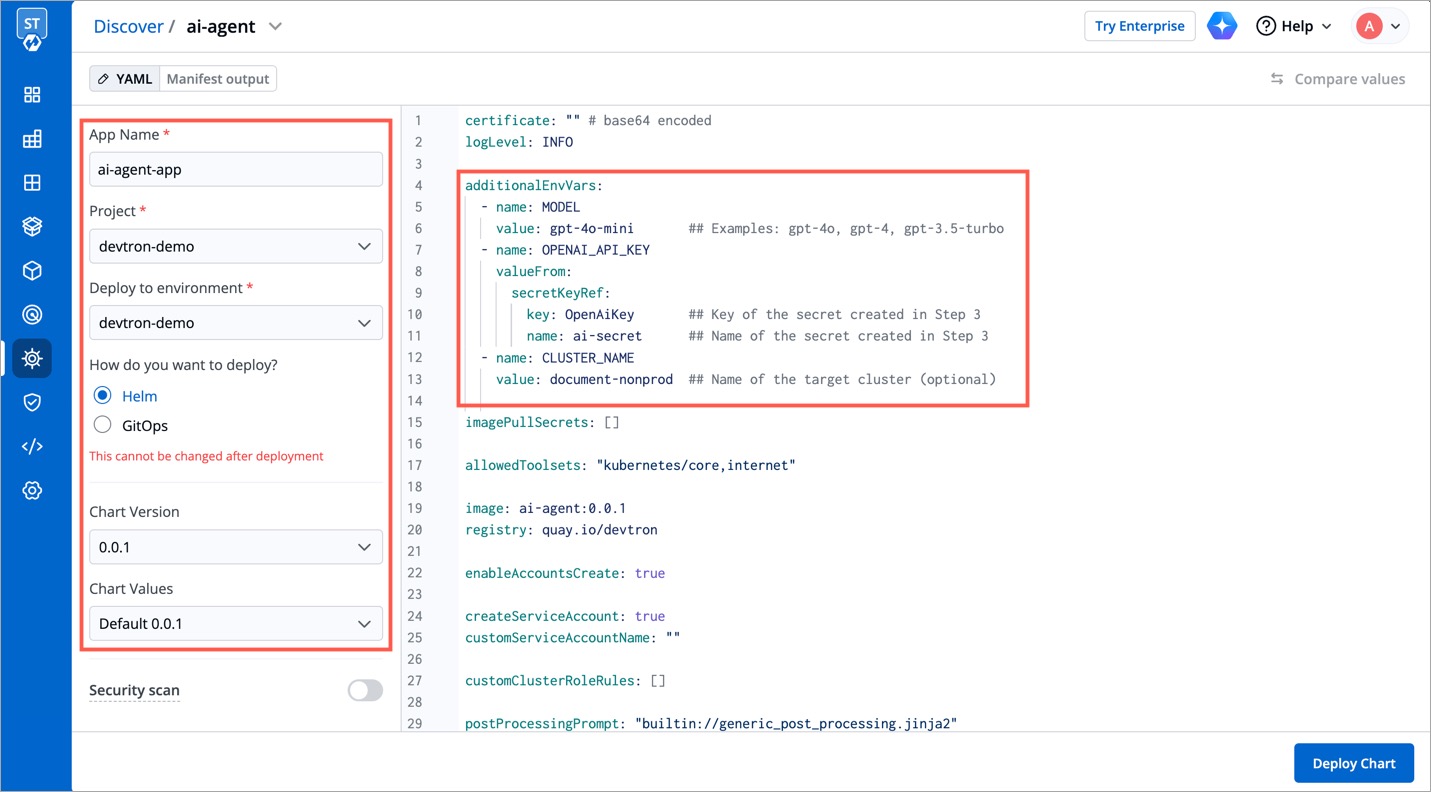
- Click the Deploy Chart button.
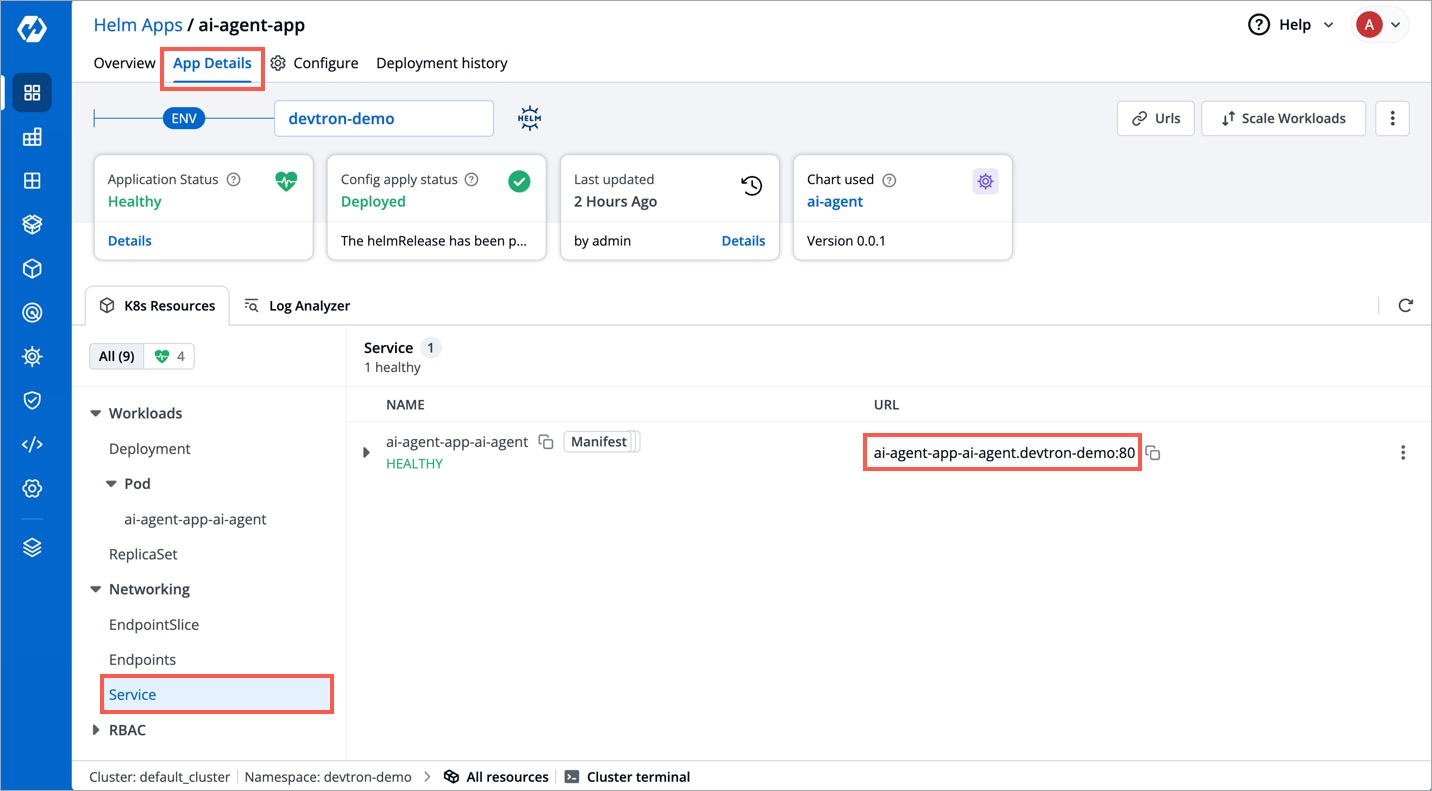
- In the App Details page of the deployed chart, expand Networking and click on Service.
- Locate the service entry with the URL in the format:
<service-name>.<namespace>:<port>. Note the values ofserviceName,namespace, andportfor the next step.
- In a new tab, go to Resource Browser → (Select Cluster) → Config & Storage → ConfigMap
- Edit the ConfigMaps:
-
devtron-cm
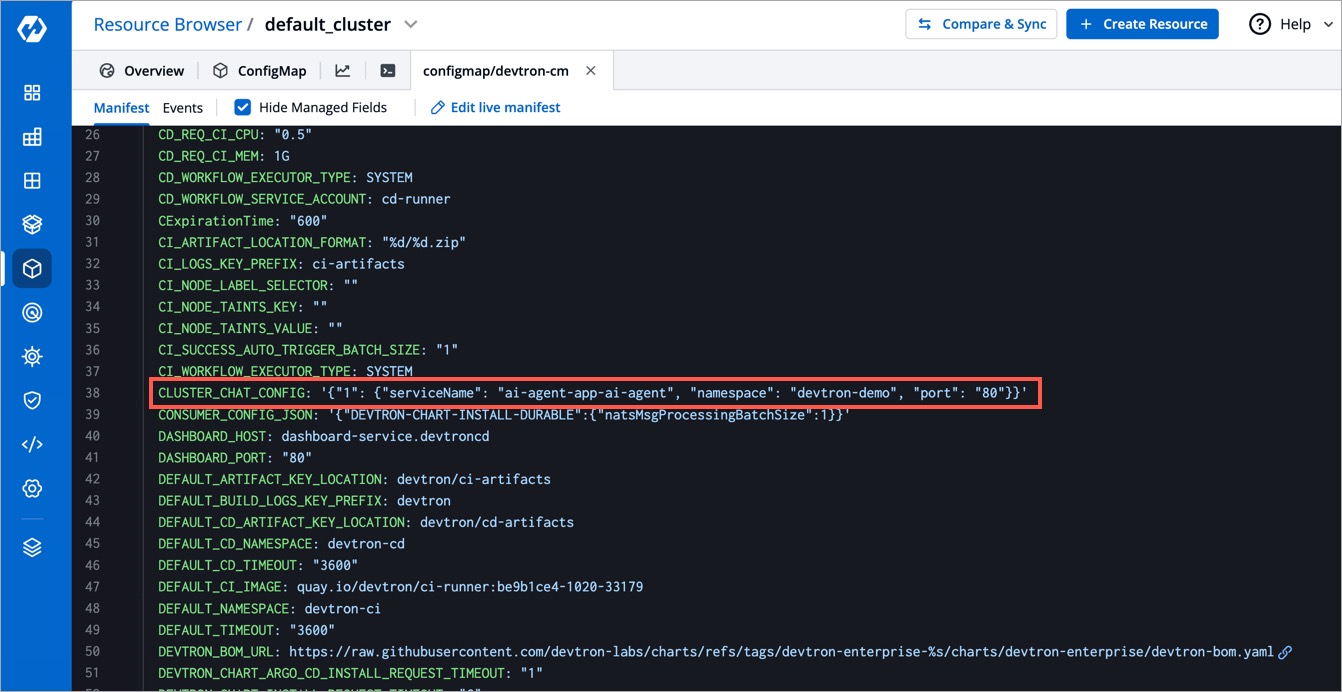
Ensure the below entry is present in the ConfigMap (create one if it doesn't exist). Here you can define the target cluster and the endpoint where your Devtron AI service is deployed:
CLUSTER_CHAT_CONFIG: '{"<targetClusterID>": {"serviceName": "", "namespace": "", "port": ""}}'
-
dashboard-cm
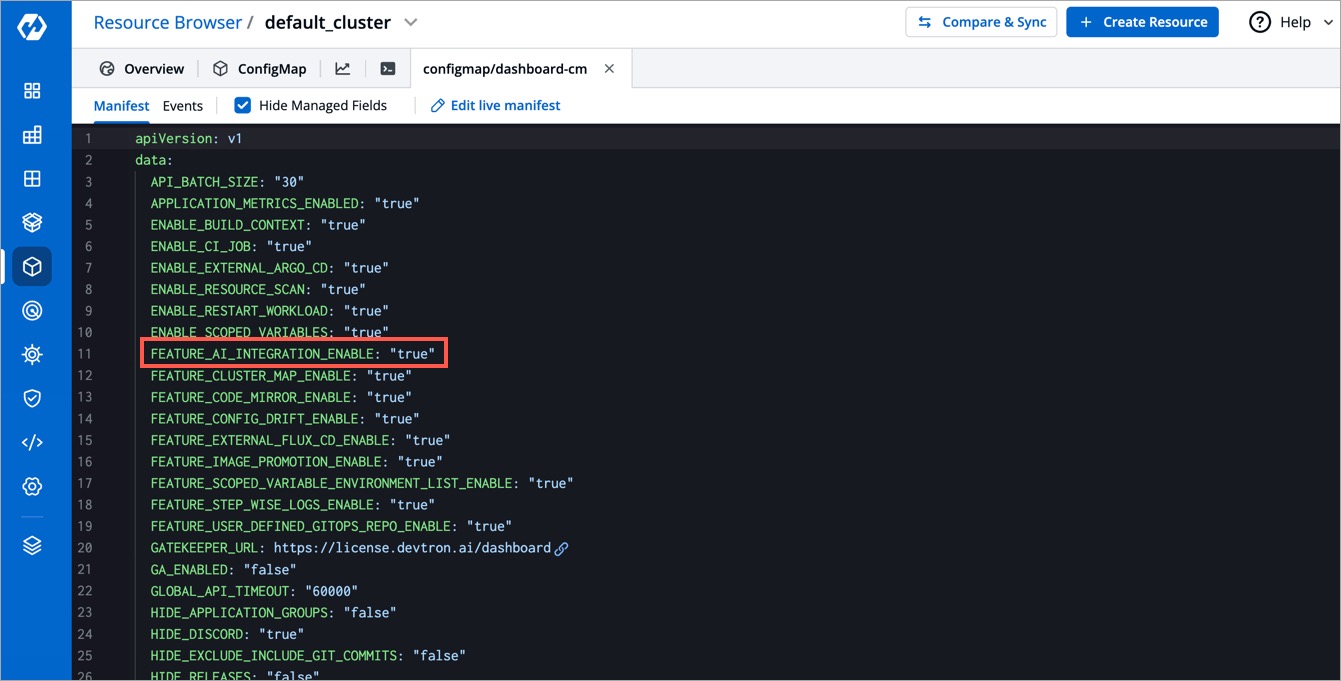
To enable AI integration via feature flag, check if the below entry is present in the ConfigMap (create one if it doesn't exist).
FEATURE_AI_INTEGRATION_ENABLE: "true"
-
-
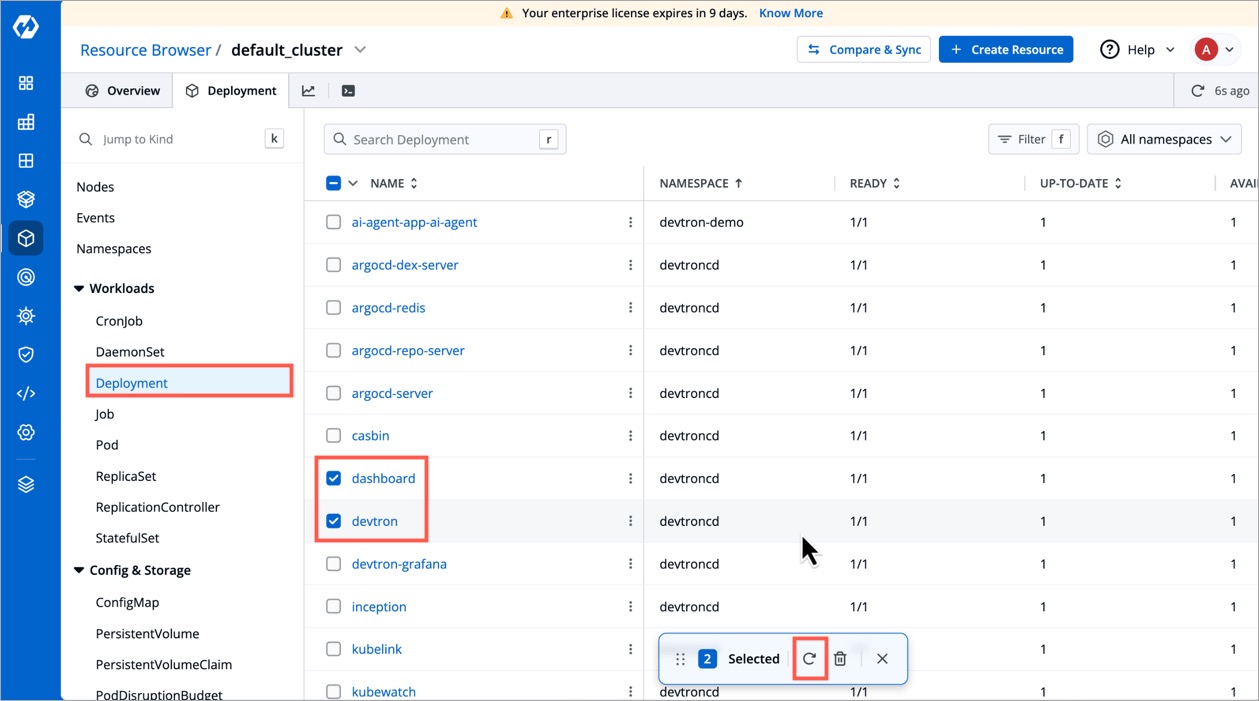
Go to Resource Browser → (Select Cluster) → Workloads → Deployment
-
Click the checkbox next to the following Deployment workloads and restart them using the
⟳button:devtrondashboard
Perform a hard refresh of the browser to clear the cache:
- Mac: Hold down
CmdandShiftand then pressR - Windows/Linux: Hold down
Ctrland then pressF5
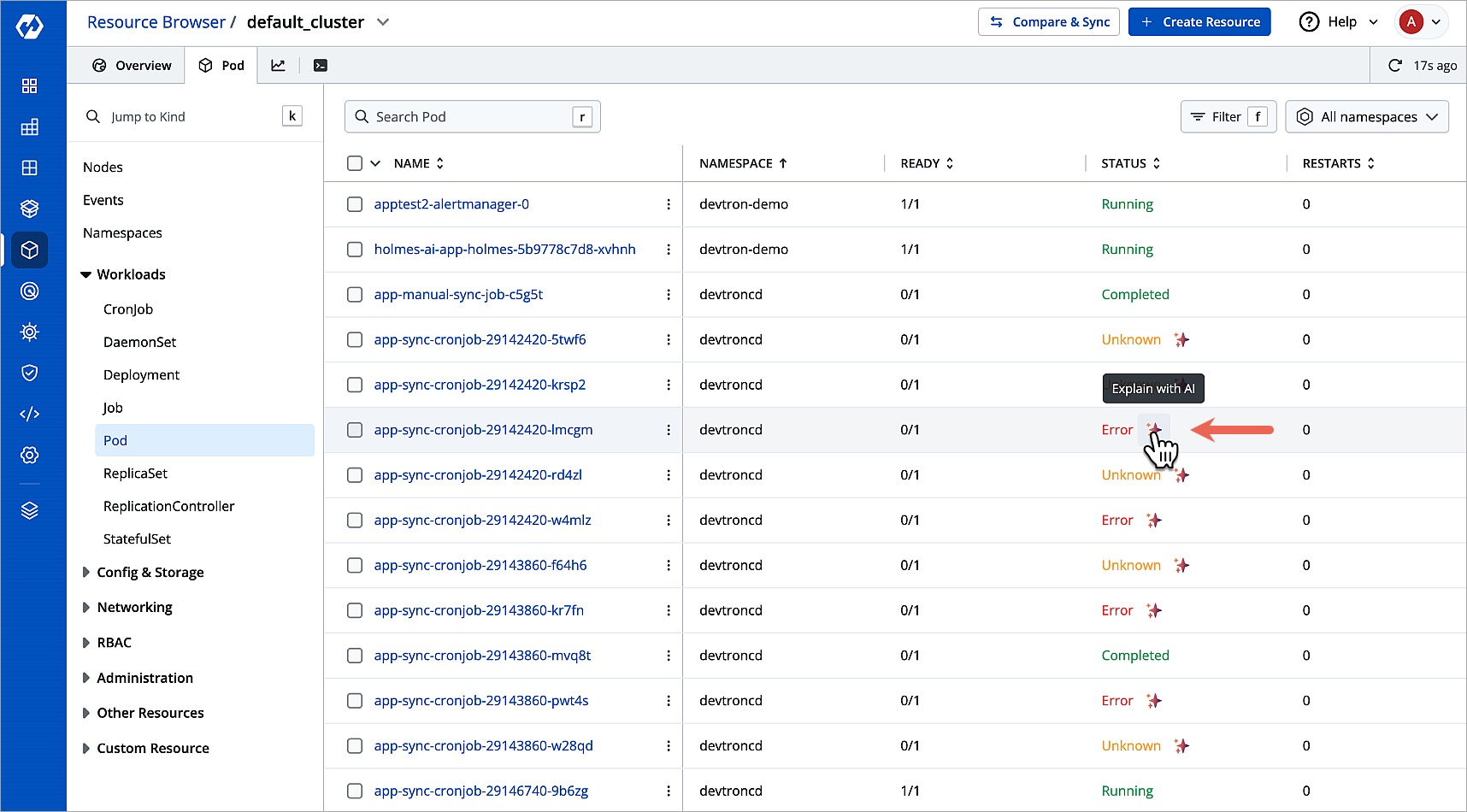
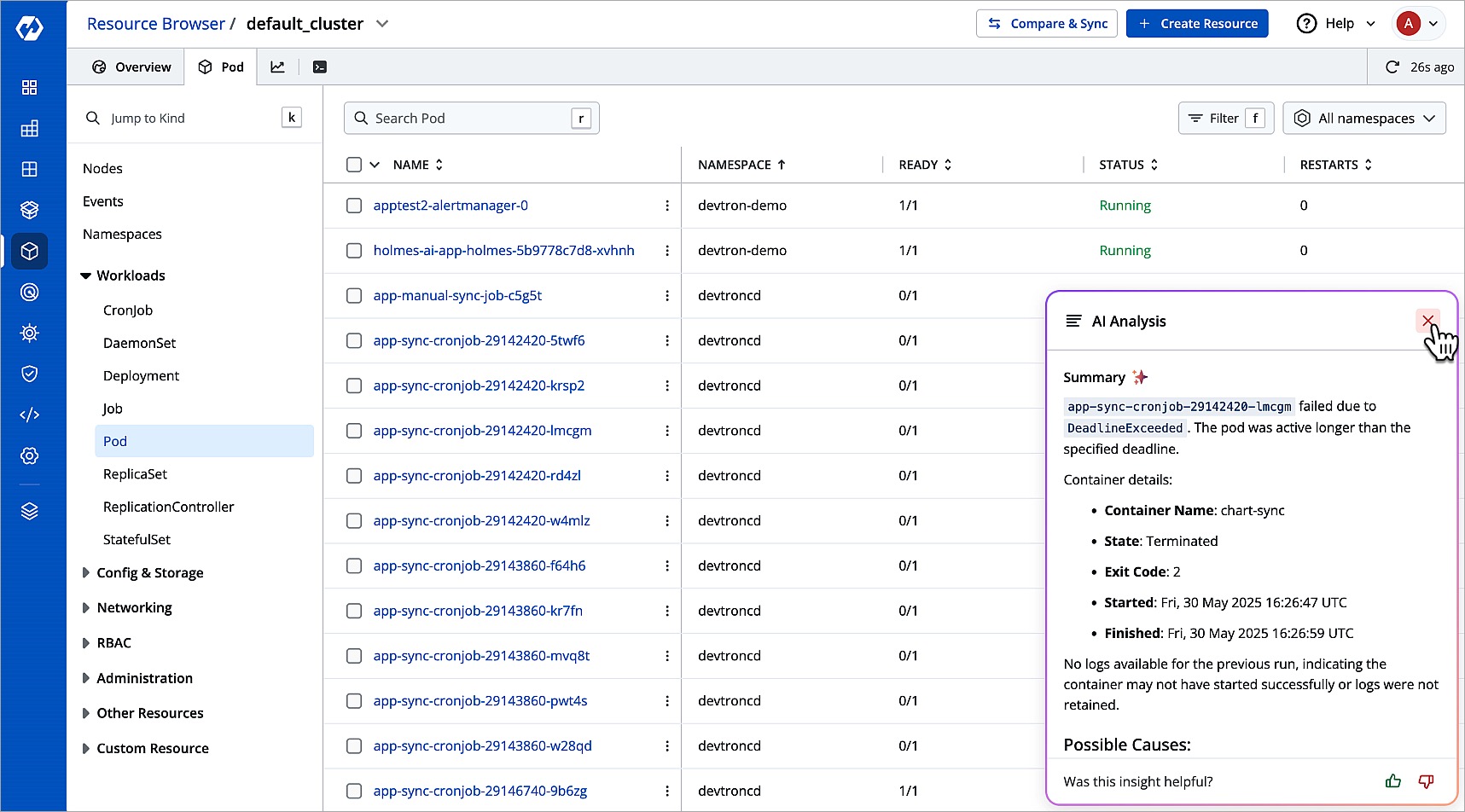
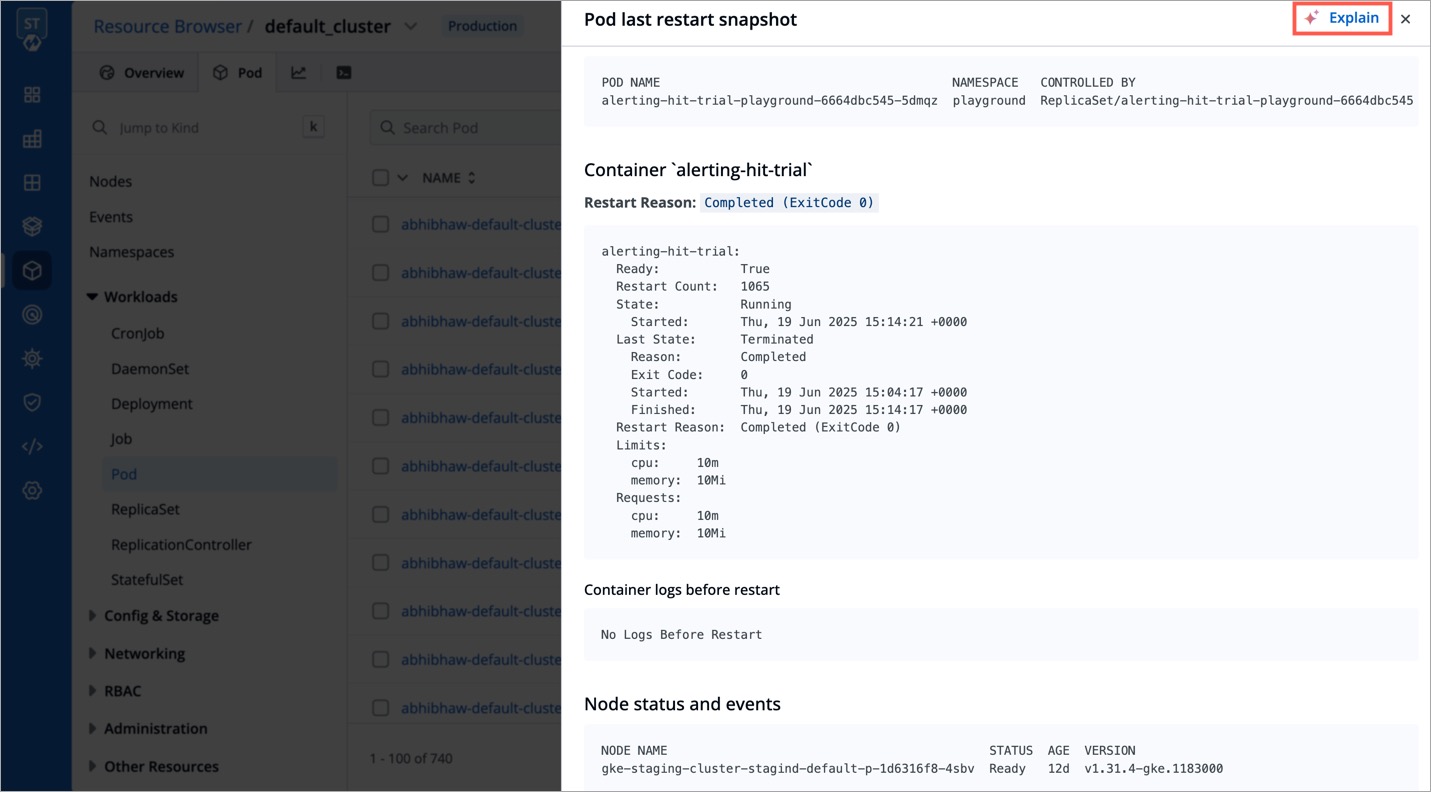
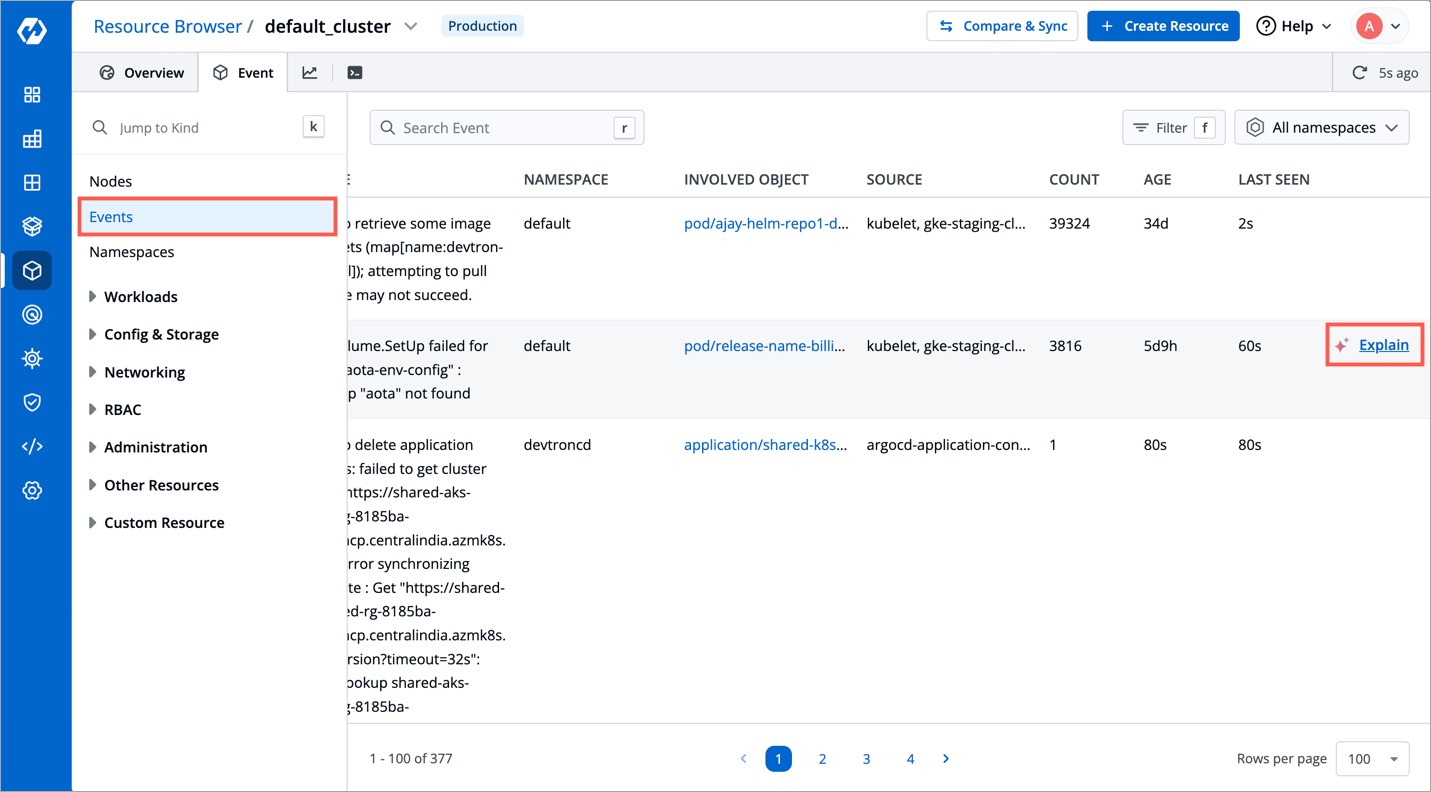
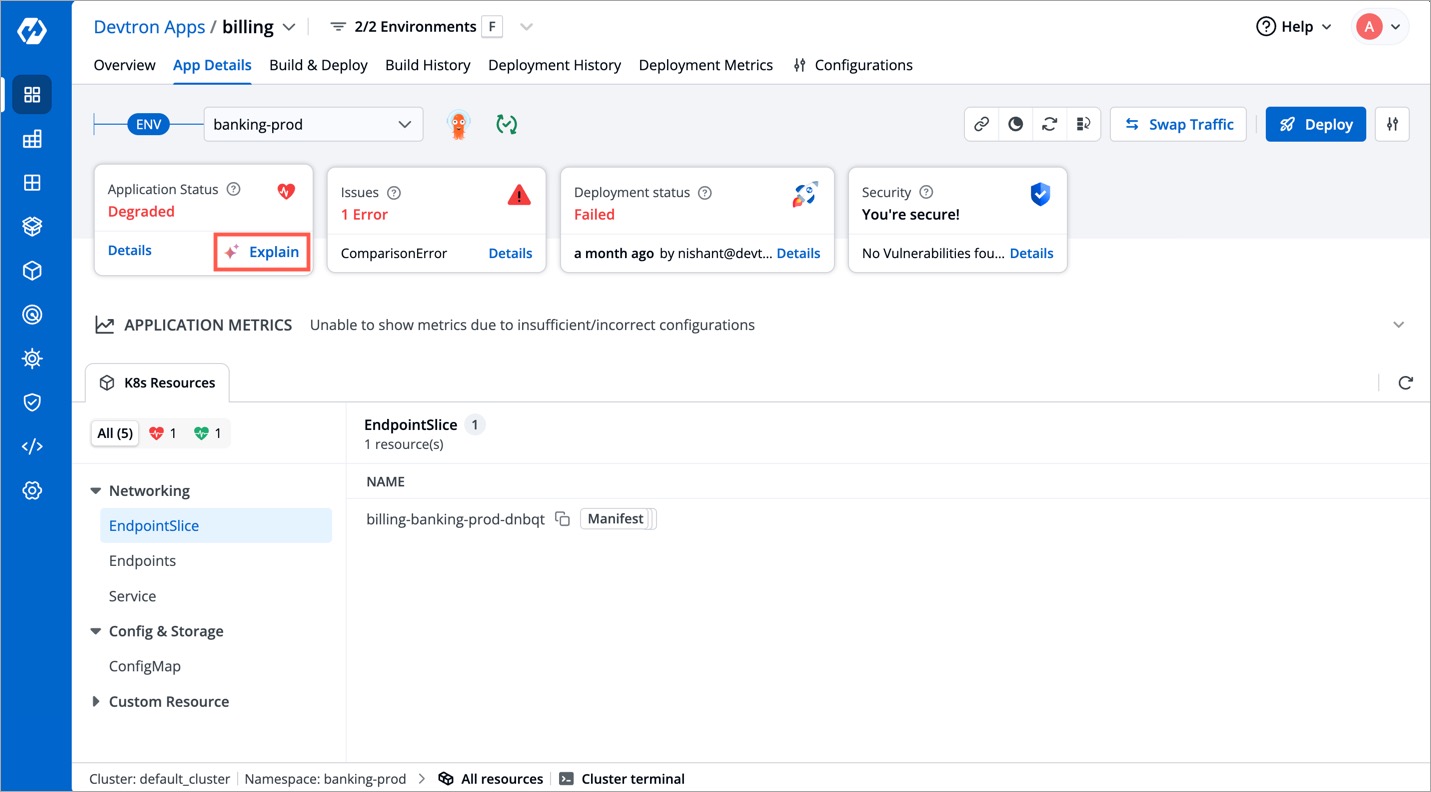
Devtron supports Explain option at the following screens (only for specific scenarios where troubleshooting is possible through AI):
Path: Resource Browser → (Select Cluster) → Workloads → Pod
Path: Resource Browser → (Select Cluster) → Workloads → Pod → Pod Last Restart Snapshot
Path: Resource Browser → (Select Cluster) → Events
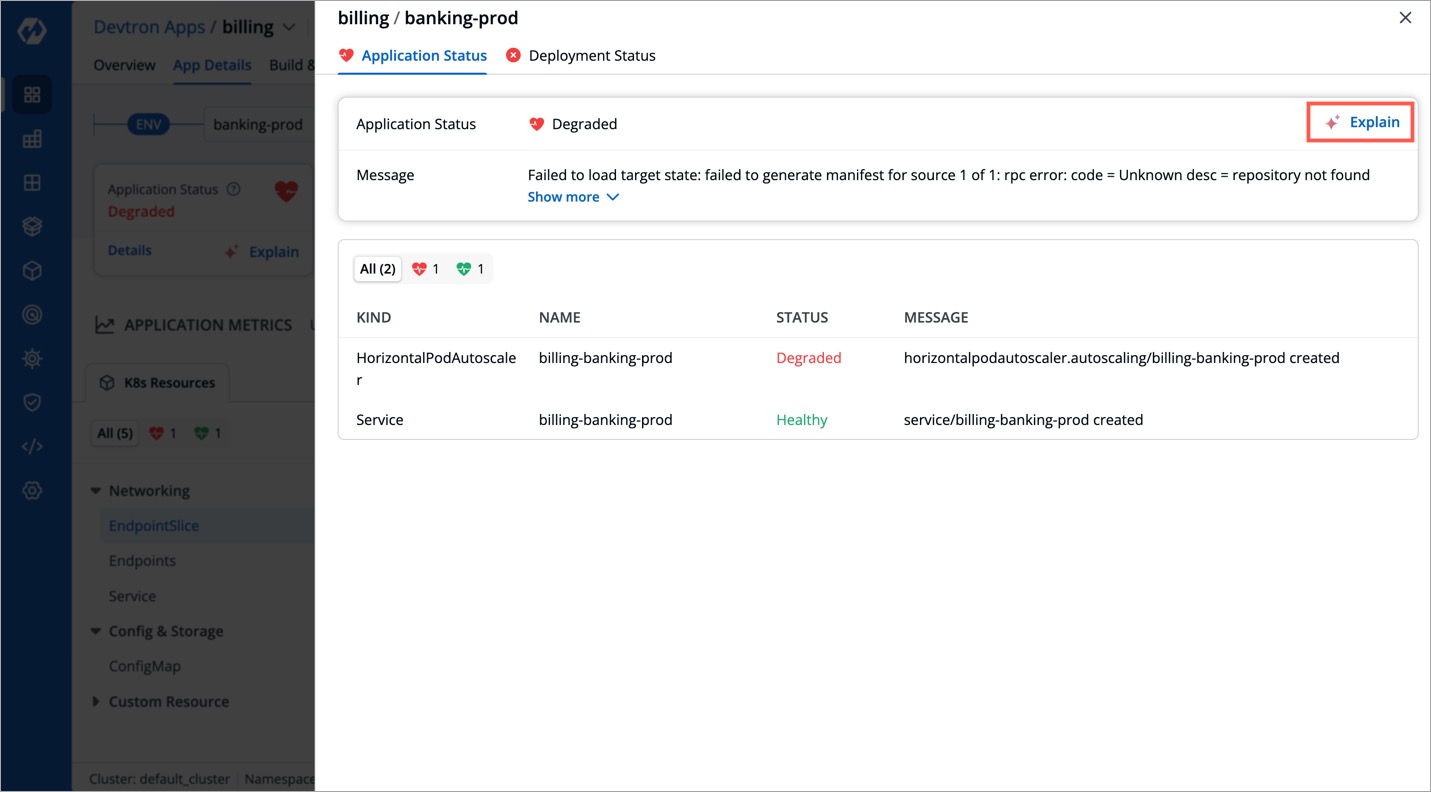
Path: Application → App Details → Application Status Drawer
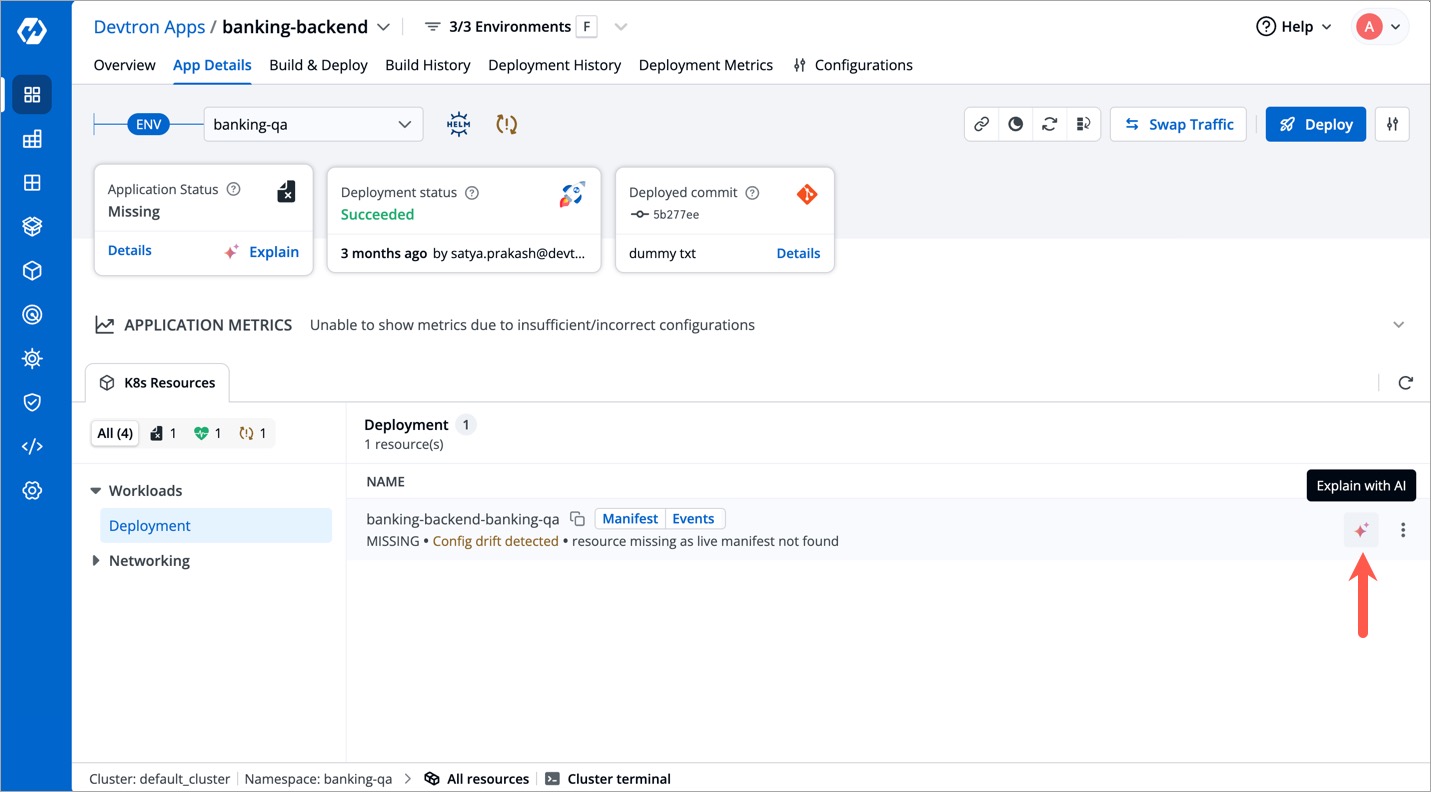
Path: Application → App Details → K8s Resources (tab) → Workloads

.png)
